What is InkIt?
InkIt is a free screen annotation tool for Windows. It puts a small floating toolbar on your screen so you can draw, highlight, zoom, take screenshots and point at things over any app, then press Esc to get your mouse back. It is built for trainers, teachers and presenters.
Is InkIt free?
Version 0.0.0.2 is a free early release, published to collect real user feedback. No pricing for later versions has been announced, and this page will not state one until it is decided.
How do I draw on the screen in Windows with InkIt?
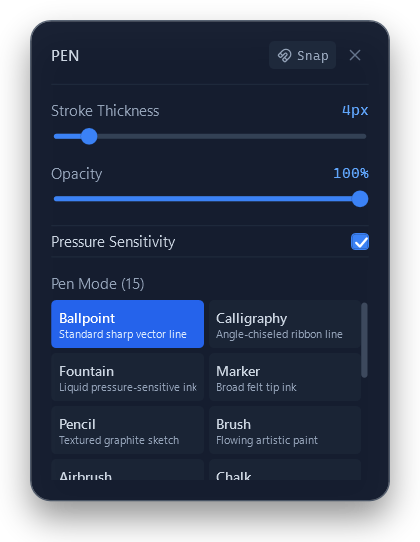
Install InkIt, choose the pen on the toolbar (or press Ctrl+Shift+2 to start drawing), and draw over anything. Press Esc to stop drawing. Nothing you draw changes the app underneath.
Can I use InkIt while sharing my screen in Teams, Zoom or Meet?
InkIt is made for people who explain things on screen, including in calls. Because InkIt draws directly on your Windows screen, the safest way to show your drawings is to share your entire screen rather than one window. We have not yet recorded formal tests in each meeting app, so run a short test call before an important session.
Does InkIt need administrator rights or an internet connection?
No administrator rights are needed; InkIt installs for your user account. It works offline. The only network request is an optional daily update check to GitHub, which you can turn off in Settings.
Why does Windows say it protected my PC when I run the installer?
The installer is not code-signed yet, so Windows SmartScreen shows a warning. If you downloaded it from the link on this page, choose More info, then Run anyway. You can compare the file's SHA-256 checksum with the one published on this page before you run it.
Is my screen content uploaded anywhere?
No. Screenshots, recordings and saved drawings stay on your PC (Videos\InkIt and Documents\InkIt), and settings are stored under %LOCALAPPDATA%\InkIt.
Is there a Mac or Linux version?
No. InkIt is a Windows desktop application and no other platform build exists.
Does InkIt work with a pen tablet or touch screen?
Yes. You can draw with a mouse, a pen or touch, and pen pressure is supported. There is also a one-click setup that maps express keys on XP-Pen tablets to InkIt tools.
How is InkIt different from ZoomIt or Epic Pen?
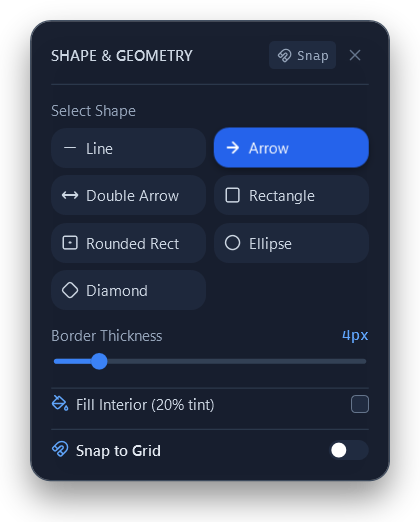
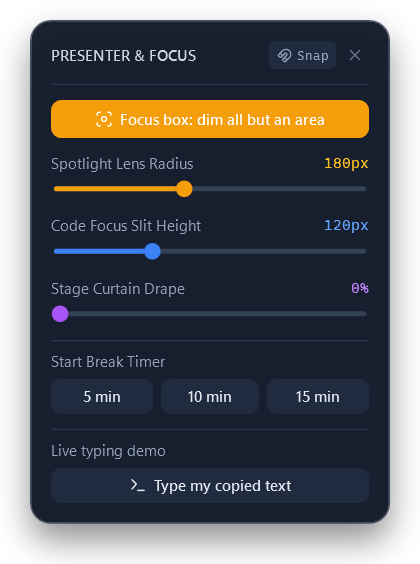
ZoomIt is a long-established free Microsoft tool and Epic Pen has a free Basic edition and a paid Pro edition. InkIt is newer and less proven, but it adds trainer-focused features such as smart shapes, numbered steps, a spotlight, per-slide drawings in PowerPoint and lesson recording in one free app. The comparison table above sets out what each tool lists.
How do I report a problem or suggest a feature?
Use the Send feedback option inside InkIt, which fills in your version number, or use the review and bug forms on the InkIt GitHub page. Feedback on early releases directly shapes what is built next.